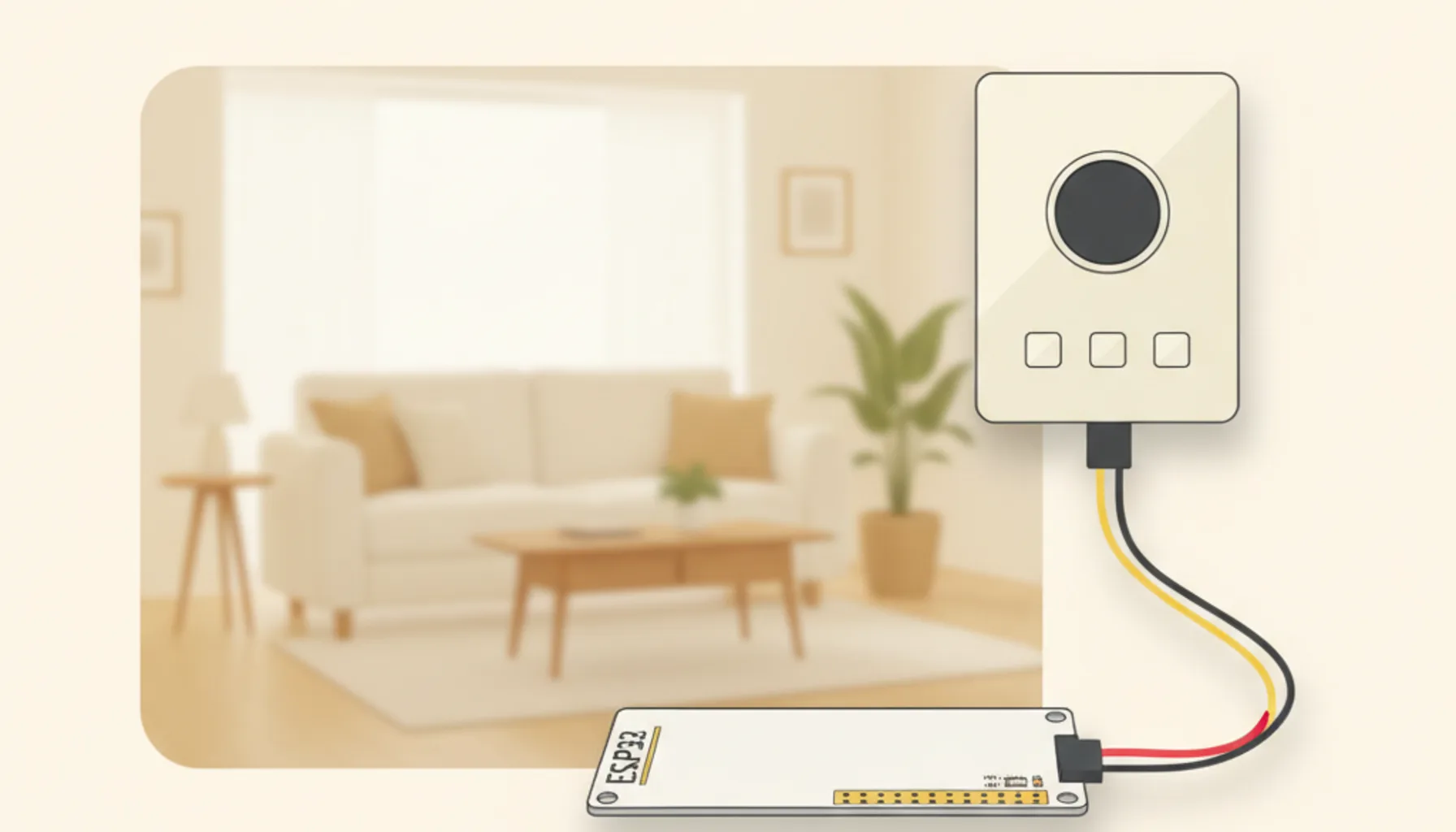
Short answer: if you have a ducted Mitsubishi AC with a wired, Wi-Fi-less wall thermostat, skip the expensive MelCloud adapter. A ±€10 ESP32 plugged into the unit’s CN105 service port gives Home Assistant full, local control — the same features as the wall thermostat, plus energy metering and room temperature. This guide is research-based: the build was documented by Iván Gómez Arnedo (Sep 2026) on a Mitsubishi SEZ-M60DA2 ducted unit [1], and we validated the approach against the official ESPHome documentation [2].
Why a non-Wi-Fi AC is a problem — and what to avoid
A ducted AC without Wi-Fi means the buttons are on the wall: mode (heat, dry, cool) and fan speed (high, medium, low) are one physical click away. On paper, there are four shortcuts — in practice, every one of them costs you features:
| Option | On paper | In practice |
|---|---|---|
| IR receiver kit | Cheap | Not fitted on this unit; still no remote access |
| Relay / dry-contact | Simple | Kills inverter modulation; you get an expensive on/off switch |
| Generic thermostat | Familiar | Loses the manufacturer’s protocol, sensors and diagnostics |
| Kumo/MelCloud adapter | Official | €100–200, cloud polling: every command round-trips to Mitsubishi |
The pattern is the same one we see in Zigbee vs Z-Wave: the “official” path is not the best path. A cloud-polling adapter means your data leaves your house and a future price change can lock you in.
The option that wins: the CN105 service port
The CN105 port is the same service port the manufacturer’s own Wi-Fi adapter uses. That is the key spec: it speaks the native protocol, so you get setpoint, mode, fan speed and room temperature exactly as the unit measures them. It works alongside the wall controller rather than replacing it — both stay in sync, because the link is bidirectional.
For less than €10 in parts you get: totally local control, open-source firmware, and none of MelCloud’s dependencies.
Hardware you need (under €10)
- ESP32 board — e.g. a Waveshare ESP32-C6 DevKit ; any ESP32 with two free UART pins works.
- JST PA 2.0 mm 5-pin pigtail — JST PA on the CN105 end, standard jumper ends on the ESP32 end.
- No external power supply needed: the unit provides a 5 V line on the service port.
CN105 wiring: read this before you connect anything
| Cable | CN105 pin | Signal | ESP32 |
|---|---|---|---|
| blue | 1 | 12 V | ⛔ never connect |
| green | 2 | GND | GND |
| yellow | 3 | 5 V | VIN |
| black | 4 | TX | RX2 = GPIO16 |
| red | 5 | RX | TX2 = GPIO17 |
Two practical notes from the documented build [1]: never connect the blue wire — that 12 V line will damage the board — and mount the ESP32 outside the metal control box, because the box acts as a Faraday cage.
Getting it into Home Assistant with ESPHome
Flash the board over USB the first time (ESPHome add-on → create device → Wi-Fi credentials once), then pick one of two firmwares:
- Native ESPHome component — pre-configured, defaults work, easiest install.
- External component (echavet/MitsubishiCN105ESPHome) — same core, extra sensors (see below).
After the first USB flash the board joins Wi-Fi and Home Assistant auto-discovers it; every later update is over the air from the ESPHome add-on.
What you get in Home Assistant
- Climate entity: on/off, mode (off, cool, heat, dry, fan_only, auto, heat_cool) and six fan speeds.
- Room temperature — matches the wall controller, exposed as a sensor.
- Automations: schedule the AC, react to temperature thresholds, arm it by presence.
- With the external component you also get: outside-air temperature (reported while the unit runs), energy consumption in kWh and human-readable error codes.
The verdict
If your AC speaks CN105, the local route is the clear win: ±€10 of hardware, native protocol, no cloud account. It is not a plug-and-play product, but for a ducted unit without Wi-Fi it is the only option that keeps every feature — plus the ones Mitsubishi charges €100+ for elsewhere.
Sources: [1] I. Gómez Arnedo, “How I added a non-Wi-Fi Mitsubishi AC to Home Assistant” (Sep 2026) — medium.com; [2] ESPHome — “Mitsubishi CN105 Climate” component docs — esphome.io.